
Android 提供了各种工具和 API,可以帮助您针对不同的屏幕和窗口尺寸创建测试。
DeviceConfigurationOverride
DeviceConfigurationOverride 可组合项可让您覆盖配置属性,以在 Compose 布局中测试多个屏幕和窗口尺寸。ForcedSize 覆盖项会将任何布局适配到可用空间中,这使您可以在任何屏幕尺寸上运行任何界面测试。例如,您可以使用小尺寸手机外形规格来运行所有界面测试,包括大尺寸手机、可折叠设备和平板电脑的界面测试。
   DeviceConfigurationOverride(
        DeviceConfigurationOverride.ForcedSize(DpSize(1280.dp, 800.dp))
    ) {
        MyScreen() // Will be rendered in the space for 1280dp by 800dp without clipping.
    }
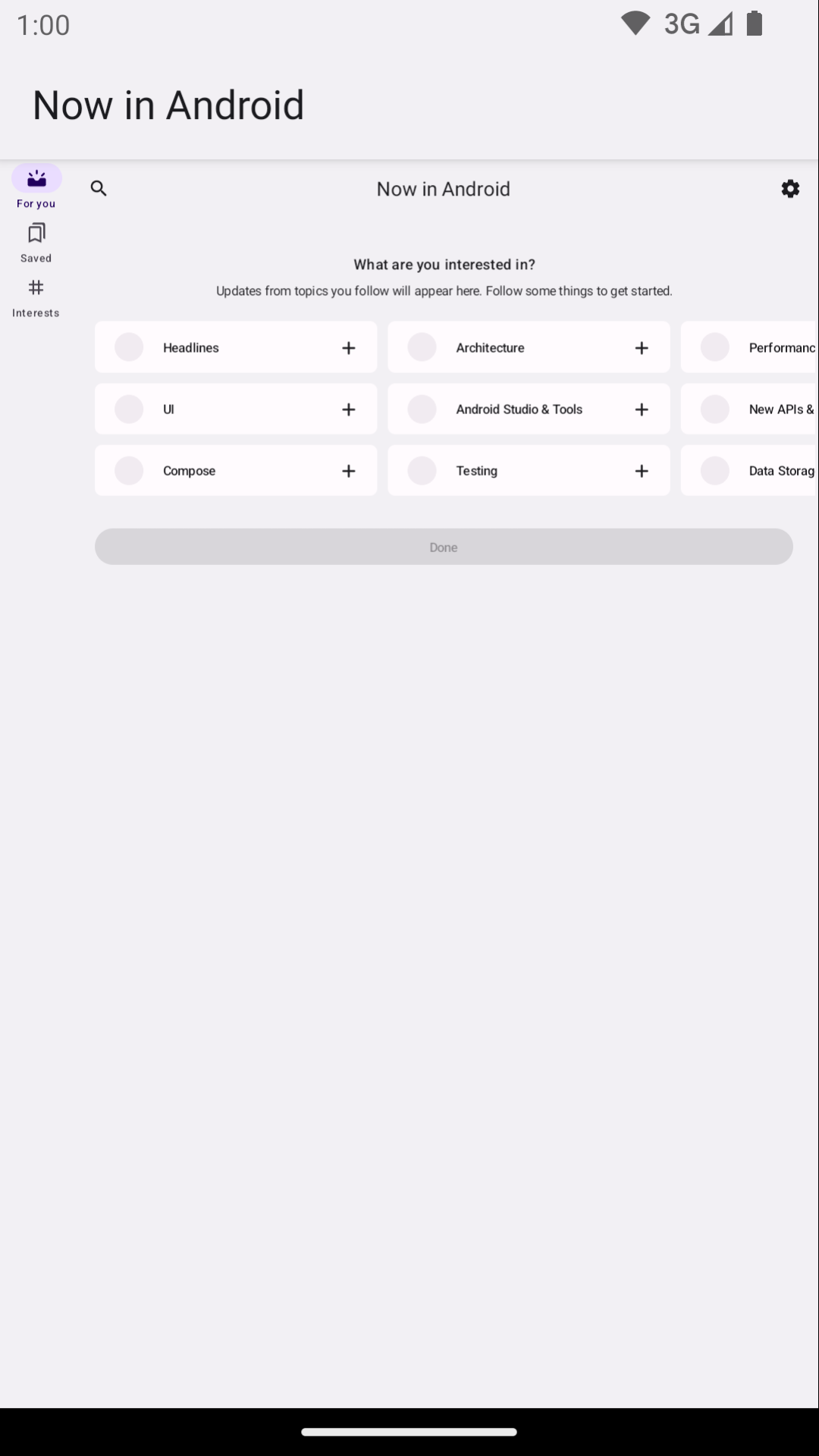
此外,您可以使用此可组合项来设置字体大小、主题和其他您可能希望在不同窗口尺寸下测试的属性。
Robolectric
使用 Robolectric 在 JVM 上本地运行基于 Compose 或视图的界面测试,无需设备或模拟器。您可以配置 Robolectric 以使用特定的屏幕尺寸以及其他有用的属性。
在《Now in Android》的以下示例中,Robolectric 配置为模拟 1000x1000 dp 的屏幕尺寸和 480 dpi 的分辨率
@RunWith(RobolectricTestRunner::class)
// Configure Robolectric to use a very large screen size that can fit all of the test sizes.
// This allows enough room to render the content under test without clipping or scaling.
@Config(qualifiers = "w1000dp-h1000dp-480dpi")
class NiaAppScreenSizesScreenshotTests { ... }
您还可以从测试主体中设置限定符,如《Now in Android》示例中的此代码段所示
val (width, height, dpi) = ...

// Set qualifiers from specs.
RuntimeEnvironment.setQualifiers("w${width}dp-h${height}dp-${dpi}dpi")
请注意,RuntimeEnvironment.setQualifiers() 会使用新配置更新系统和应用资源,但不会触发对活动中活动或其他组件的任何操作。
您可以在 Robolectric 的设备配置文档中阅读更多内容。
Gradle 管理的设备
Gradle 管理的设备 (GMD) Android Gradle 插件可让您定义运行插桩测试的模拟器和真实设备的规格。为具有不同屏幕尺寸的设备创建规格,以实施需要某些测试在特定屏幕尺寸上运行的测试策略。通过将 GMD 与持续集成 (CI) 结合使用,您可以确保在需要时运行适当的测试、预配和启动模拟器,并简化您的 CI 设置。
android {
    testOptions {
        managedDevices {
            devices {
                // Run with ./gradlew nexusOneApi30DebugAndroidTest.
                nexusOneApi30(com.android.build.api.dsl.ManagedVirtualDevice) {
                    device = "Nexus One"
                    apiLevel = 30
                    // Use the AOSP ATD image for better emulator performance
                    systemImageSource = "aosp-atd"
                }
                // Run with ./gradlew  foldApi34DebugAndroidTest.
                foldApi34(com.android.build.api.dsl.ManagedVirtualDevice) {
                    device = "Pixel Fold"
                    apiLevel = 34
                    systemImageSource = "aosp-atd"
                }
            }
        }
    }
}
您可以在 testing-samples 项目中找到 GMD 的多个示例。
Firebase Test Lab
使用 Firebase Test Lab (FTL) 或类似的设备场服务,在您可能无法访问的特定真实设备(例如各种尺寸的可折叠设备或平板电脑)上运行测试。Firebase Test Lab 是一种付费服务,但提供免费套餐。FTL 还支持在模拟器上运行测试。这些服务可以通过预先提供设备和模拟器来提高插桩测试的可靠性和速度。
有关将 FTL 与 GMD 结合使用的信息,请参阅使用 Gradle 管理的设备扩展测试。
使用测试运行程序过滤测试
最佳测试策略不应重复验证相同的内容,因此您的大多数界面测试不需要在多个设备上运行。通常,您会通过在手机外形规格设备上运行所有或大部分界面测试,并且只在具有不同屏幕尺寸的设备上运行一部分界面测试来过滤您的界面测试。
您可以为某些测试添加注释,使其仅在某些设备上运行,然后使用运行测试的命令将参数传递给 AndroidJUnitRunner。
例如,您可以创建不同的注释
annotation class TestExpandedWidth
annotation class TestCompactWidth
并在不同的测试中使用它们
class MyTestClass {

    @Test
    @TestExpandedWidth
    fun myExample_worksOnTablet() {
        ...
    }

    @Test
    @TestCompactWidth
    fun myExample_worksOnPortraitPhone() {
        ...
    }

}
然后,您可以在运行测试时使用 android.testInstrumentationRunnerArguments.annotation 属性来过滤特定的测试。例如,如果您使用 Gradle 管理的设备
$ ./gradlew pixelTabletApi30DebugAndroidTest -Pandroid.testInstrumentationRunnerArguments.annotation='com.sample.TestExpandedWidth'
如果您不使用 GMD 并在 CI 上管理模拟器,请首先确保正确的模拟器或设备已准备好并已连接,然后将参数传递给其中一个 Gradle 命令以运行插桩测试
$ ./gradlew connectedAndroidTest -Pandroid.testInstrumentationRunnerArguments.annotation='com.sample.TestExpandedWidth'
请注意,Espresso Device(请参阅下一节)也可以通过使用设备属性来过滤测试。
Espresso Device
使用 Espresso Device 在测试中的模拟器上执行操作,使用任何类型的插桩测试,包括 Espresso、Compose 或 UI Automator 测试。这些操作可能包括设置屏幕尺寸或切换可折叠状态或姿态。例如,您可以控制可折叠模拟器并将其设置为桌面模式。Espresso Device 还包含 JUnit 规则和注释,以要求某些功能
@RunWith(AndroidJUnit4::class)
class OnDeviceTest {

    @get:Rule(order=1) val activityScenarioRule = activityScenarioRule<MainActivity>()

    @get:Rule(order=2) val screenOrientationRule: ScreenOrientationRule =
        ScreenOrientationRule(ScreenOrientation.PORTRAIT)

    @Test
    fun tabletopMode_playerIsDisplayed() {
        // Set the device to tabletop mode.
        onDevice().setTabletopMode()
        onView(withId(R.id.player)).check(matches(isDisplayed()))
    }
}
请注意,Espresso Device 仍处于 Alpha 阶段,并具有以下要求
- Android Gradle 插件 8.3 或更高版本
- Android 模拟器 33.1.10 或更高版本
- 运行 API 级别 24 或更高版本的 Android 虚拟设备
过滤测试
Espresso Device 可以读取连接设备的属性,从而使您能够使用注释过滤测试。如果未满足注释要求,则会跳过测试。
RequiresDeviceMode 注释
RequiresDeviceMode 注释可以多次使用,表示仅当设备上支持所有 DeviceMode 值时才运行的测试。
class OnDeviceTest {
    ...
    @Test
    @RequiresDeviceMode(TABLETOP)
    @RequiresDeviceMode(BOOK)
    fun tabletopMode_playerIdDisplayed() {
        // Set the device to tabletop mode.
        onDevice().setTabletopMode()
        onView(withId(R.id.player)).check(matches(isDisplayed()))
    }
}
RequiresDisplay 注释
RequiresDisplay 注释可让您使用尺寸类指定设备屏幕的宽度和高度,这些尺寸类定义了遵循官方窗口尺寸类的尺寸分桶。
class OnDeviceTest {
    ...
    @Test
    @RequiresDisplay(EXPANDED, COMPACT)
    fun myScreen_expandedWidthCompactHeight() {
        ...
    }
}
调整显示器大小
使用 setDisplaySize() 方法在运行时调整屏幕尺寸。结合 DisplaySizeRule 类使用此方法,该类确保在下一次测试之前撤消在测试期间所做的任何更改。
@RunWith(AndroidJUnit4::class)
class ResizeDisplayTest {

    @get:Rule(order = 1) val activityScenarioRule = activityScenarioRule<MainActivity>()

    // Test rule for restoring device to its starting display size when a test case finishes.
    @get:Rule(order = 2) val displaySizeRule: DisplaySizeRule = DisplaySizeRule()

    @Test
    fun resizeWindow_compact() {
        onDevice().setDisplaySize(
            widthSizeClass = WidthSizeClass.COMPACT,
            heightSizeClass = HeightSizeClass.COMPACT
        )
        // Verify visual attributes or state restoration.
    }
}
当您使用 setDisplaySize() 调整显示器大小时,不会影响设备的密度,因此如果某个尺寸不适合目标设备,测试将失败并显示 UnsupportedDeviceOperationException。为了防止在这种情况下运行测试,请使用 RequiresDisplay 注释将其过滤掉
@RunWith(AndroidJUnit4::class)
class ResizeDisplayTest {

    @get:Rule(order = 1) var activityScenarioRule = activityScenarioRule<MainActivity>()

    // Test rule for restoring device to its starting display size when a test case finishes.
    @get:Rule(order = 2) var displaySizeRule: DisplaySizeRule = DisplaySizeRule()

    /**
     * Setting the display size to EXPANDED would fail in small devices, so the [RequiresDisplay]
     * annotation prevents this test from being run on devices outside the EXPANDED buckets.
     */
    @RequiresDisplay(
        widthSizeClass = WidthSizeClassEnum.EXPANDED,
        heightSizeClass = HeightSizeClassEnum.EXPANDED
    )
    @Test
    fun resizeWindow_expanded() {
        onDevice().setDisplaySize(
            widthSizeClass = WidthSizeClass.EXPANDED,
            heightSizeClass = HeightSizeClass.EXPANDED
        )
        // Verify visual attributes or state restoration.
    }
}
StateRestorationTester
StateRestorationTester 类用于测试可组合组件的状态恢复,而无需重新创建活动。这使得测试更快、更可靠,因为活动重新创建是一个复杂的过程,涉及多个同步机制
@Test
fun compactDevice_selectedEmailEmailRetained_afterConfigChange() {
    val stateRestorationTester = StateRestorationTester(composeTestRule)

    // Set content through the StateRestorationTester object.
    stateRestorationTester.setContent {
        MyApp()
    }

    // Simulate a config change.
    stateRestorationTester.emulateSavedInstanceStateRestore()
}
窗口测试库
窗口测试库包含实用工具,可帮助您编写依赖或验证与窗口管理相关的功能的测试,例如活动嵌入或可折叠功能。该工件可通过 Google 的 Maven 仓库获取。
例如,您可以使用 FoldingFeature() 函数生成自定义 FoldingFeature,您可以在 Compose 预览中使用该功能。在 Java 中,使用 createFoldingFeature() 函数。
在 Compose 预览中,您可以通过以下方式实现 FoldingFeature
@Preview(showBackground = true, widthDp = 480, heightDp = 480)
@Composable private fun FoldablePreview() =
    MyApplicationTheme {
        ExampleScreen(
            displayFeatures = listOf(FoldingFeature(Rect(0, 240, 480, 240)))
        )
 }
此外,您可以使用 TestWindowLayoutInfo() 函数在 UI 测试中模拟显示功能。以下示例模拟了一个在屏幕中心具有 HALF_OPENED 垂直铰链的 FoldingFeature,然后检查布局是否符合预期
Compose
import androidx.window.layout.FoldingFeature.Orientation.Companion.VERTICAL
import androidx.window.layout.FoldingFeature.State.Companion.HALF_OPENED
import androidx.window.testing.layout.FoldingFeature
import androidx.window.testing.layout.TestWindowLayoutInfo
import androidx.window.testing.layout.WindowLayoutInfoPublisherRule

@RunWith(AndroidJUnit4::class)
class MediaControlsFoldingFeatureTest {

    @get:Rule(order=1)
    val composeTestRule = createAndroidComposeRule<ComponentActivity>()

    @get:Rule(order=2)
    val windowLayoutInfoPublisherRule = WindowLayoutInfoPublisherRule()

    @Test
    fun foldedWithHinge_foldableUiDisplayed() {
        composeTestRule.setContent {
            MediaPlayerScreen()
        }

        val hinge = FoldingFeature(
            activity = composeTestRule.activity,
            state = HALF_OPENED,
            orientation = VERTICAL,
            size = 2
        )

        val expected = TestWindowLayoutInfo(listOf(hinge))
        windowLayoutInfoPublisherRule.overrideWindowLayoutInfo(expected)

        composeTestRule.waitForIdle()

        // Verify that the folding feature is detected and media controls shown.
        composeTestRule.onNodeWithTag("MEDIA_CONTROLS").assertExists()
    }
}
视图
import androidx.window.layout.FoldingFeature.Orientation
import androidx.window.layout.FoldingFeature.State
import androidx.window.testing.layout.FoldingFeature
import androidx.window.testing.layout.TestWindowLayoutInfo
import androidx.window.testing.layout.WindowLayoutInfoPublisherRule

@RunWith(AndroidJUnit4::class)
class MediaControlsFoldingFeatureTest {

    @get:Rule(order=1)
    val activityRule = ActivityScenarioRule(MediaPlayerActivity::class.java)

    @get:Rule(order=2)
    val windowLayoutInfoPublisherRule = WindowLayoutInfoPublisherRule()

    @Test
    fun foldedWithHinge_foldableUiDisplayed() {
        activityRule.scenario.onActivity { activity ->
            val feature = FoldingFeature(
                activity = activity,
                state = State.HALF_OPENED,
                orientation = Orientation.VERTICAL)
            val expected = TestWindowLayoutInfo(listOf(feature))
            windowLayoutInfoPublisherRule.overrideWindowLayoutInfo(expected)
        }

        // Verify that the folding feature is detected and media controls shown.
        onView(withId(R.id.media_controls)).check(matches(isDisplayed()))
    }
}
您可以在 WindowManager 项目中找到更多示例。
其他资源
文档
示例
- WindowManager 示例
- Espresso Device 示例
- Now In Android
- 使用截屏测试来验证不同的屏幕尺寸
Codelabs